GPT Image 2 Limitations: What It Can't Do (and How to Work Around It)
GPT Image 2 is genuinely strong, but it isn't magic. Here are the constraints that actually trip people up — and the fix for each.
Why an honest limitations list is worth reading
Most "GPT Image 2" articles read like brochures. This one doesn't. If you have ever typed a prompt, gotten back something almost right, and wondered whether you were holding the tool wrong, the answer is usually no — you hit a real constraint of the model, the API, or the product pipeline around it.
The good news is that most of these limitations have a practical mitigation, and most are simple once you know the boundary exists. GPT Image 2 is still strong at prompt adherence, in-image text, and photorealistic detail. Knowing where the edges are just lets you stop fighting them and route around them instead.
Everything below is based on how the model and the gpt-img2.com pipeline actually behave today. Where the constraint is a hard product limit (resolution, transparency, content policy), we say so plainly rather than pretending a prompt trick will overcome it.
Limitation 1 — No transparent background
On gpt-img2.com you will not get a transparent PNG back. If you ask for a transparent or alpha-channel background, the pipeline silently downgrades it to a normal background — you will not see an error, you will just get an opaque image. This catches people who want clean logos, stickers, product cut-outs, or UI assets to drop onto another layer.
Why: the generation returns a finished, flattened raster image, not a layered file with an alpha channel — so in this pipeline there is no transparent-background mode that carves the subject out for you. Treat transparency as a post-processing step, not something the generator hands you.
Workaround: generate on a flat, single-color background that contrasts hard with your subject, then remove the background as a separate post step. A solid chroma color (bright green or magenta) keys out cleanly in almost any background remover. Just budget extra time for tricky edges — fine hair, glass, motion blur, and soft shadows are where automatic removal struggles, so a hard, clean silhouette is what you are designing for.
A single product, a white ceramic coffee mug, centered on a flat solid bright-green (#00FF00) background, even studio lighting, no shadows on the background, sharp edges, no props. Product-shot style.The flat background and "no shadows on the background" instruction are the important parts — they give your background-removal tool a clean, unambiguous edge to cut along. For logos and icons, generate large on a solid background and key it out the same way; do not expect the model itself to hand you a transparent file.
Limitation 2 — 4K is restricted to wide and tall aspect ratios
On gpt-img2.com you can generate at 1K, 2K, or 4K. But 4K is not available for every shape. It is supported on six aspect ratios only: 16:9, 9:16, 2:1, 1:2, 21:9, and 9:21 — all of them wide or tall panoramic ratios. A square (1:1), 4:3, 3:2, 4:5, or any other standard ratio tops out at the 2K tier.
Why: in the gpt-img2.com pipeline, the 4K preset is only enabled for those six wide and tall ratios. Square and near-square ratios top out at the 2K tier rather than letting you pay the 4K rate for a size the preset won't produce.
This means there is no 4K square here. If you need a very large 1:1 — say a 4000×4000 print or a high-DPI app icon — the generator alone will not deliver it in one shot.
Workaround: pick your battles by output ratio. If you genuinely need 4K detail, compose your shot for one of the six supported wide/tall ratios (16:9 and 9:16 cover most screen, poster, and social needs). If you must have a large square, generate at 2K and upscale the result with a dedicated image upscaler — 2048 → 4096 upscaling on a clean GPT Image 2 render can work well depending on the source detail and final print size. Plan the ratio before you write the prompt, not after.
Limitation 3 — In-image text is strong, but not pixel-perfect
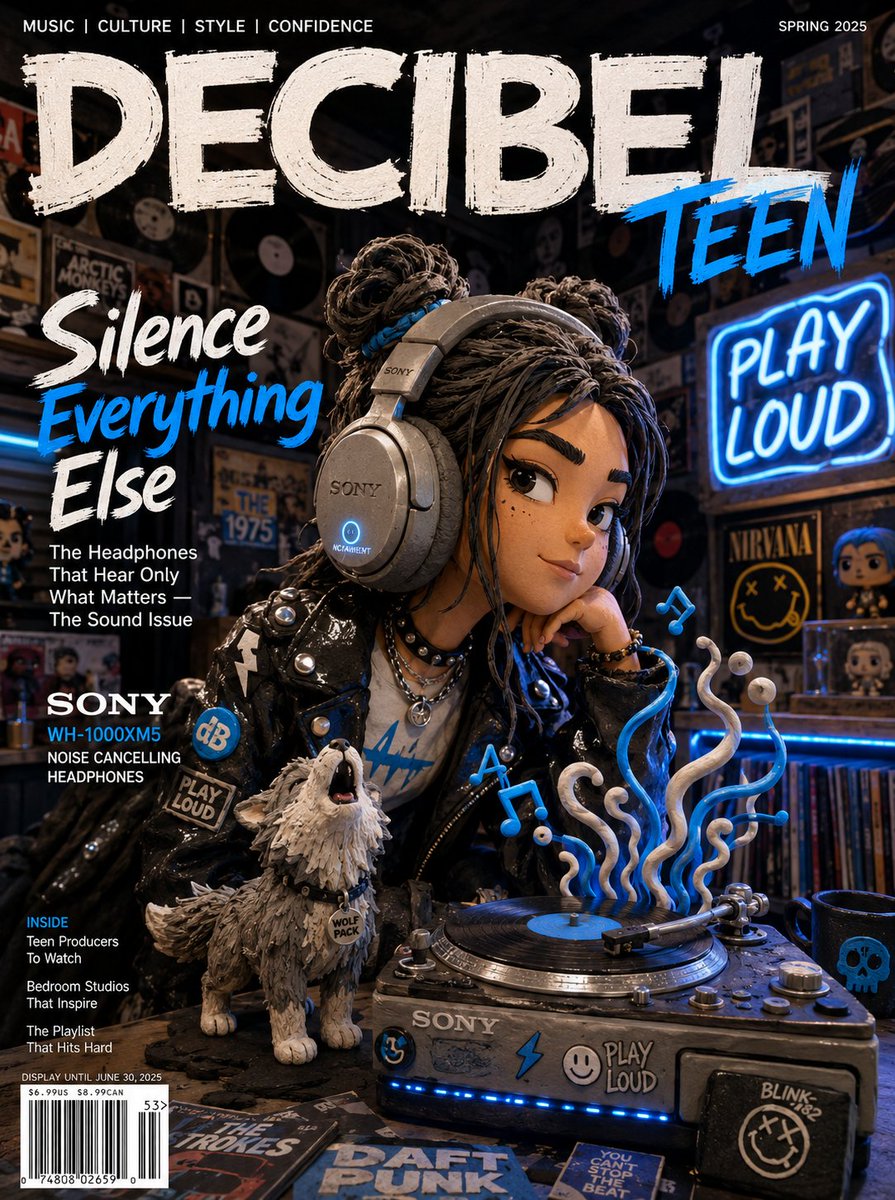
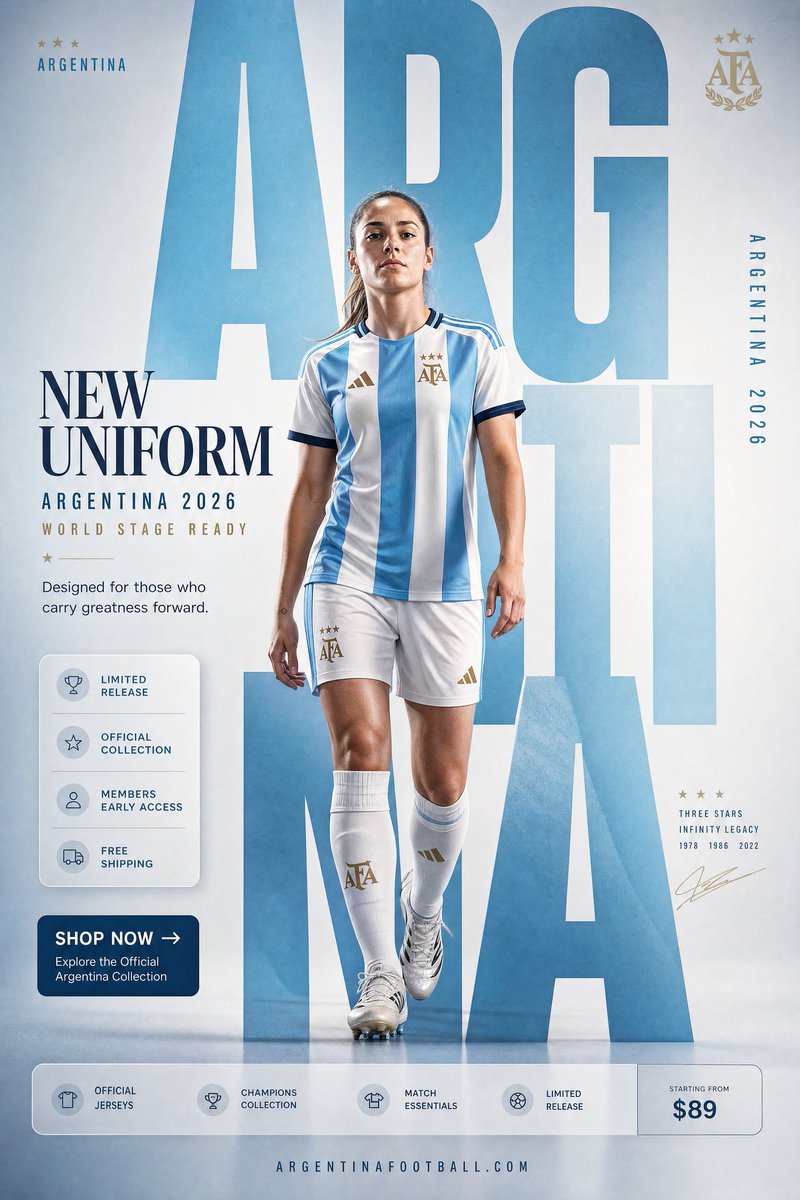
GPT Image 2 renders legible text far better than older diffusion models — short labels, headlines, signage, and UI mockups usually come out clean and correctly spelled. But it is not a typesetting engine. Long words, dense paragraphs, unusual brand names, and small body copy can still produce dropped letters, doubled characters, or subtle misspellings.
Why: the model paints text as shapes that look like letters, guided by your prompt, rather than laying out a font. The longer and more unusual the string, the more chances there are for a single glyph to wobble — and one wrong letter ruins the whole word.
Workaround: keep the text the model has to render short, and put long or critical copy on as a separate step.
- Quote the exact text in your prompt: write the words "GRAND OPENING" exactly, not just "a sign that says grand opening" — quoting reduces improvisation
- Favor a few short words over sentences; ask for a headline, not a paragraph
- For anything legally or commercially load-bearing (prices, brand names, contact info), generate the artwork without that text and overlay real text in any design tool afterward — that guarantees zero typos
- If a single word comes back misspelled, feed the image back as a reference and ask for an edit that fixes only that word, rather than re-rolling the whole scene
Treat GPT Image 2 as a brilliant illustrator who is a slightly unreliable speller: let it do the picture, and keep the truly important words under your own control.
Limitation 4 — Character consistency is helped, not guaranteed
Every generation is an independent sample. Unless you pass prior images back in as references, the model has no memory of the last image it made, so the "same" character will drift between runs until you actively pin the identity. Reference images make a huge difference, and you can pass more than one (the API supports several; the number the web UI exposes may be smaller) — but even with a reference, a perfect, frame-by-frame identical match is not guaranteed. Faces and fine details can shift slightly between generations.
Why: a reference image strongly biases the output toward a likeness, but the model still re-synthesizes the whole image from scratch each time. It preserves the gist of an identity, not an exact pixel copy of a face.
Workaround: stack the techniques that reduce ambiguity.
- Always pass the same reference image, and phrase the prompt as a transformation: "using the provided image, keep the face, hair, and outfit identical; change only the background"
- Add a written identity anchor — a fixed block of hyper-specific traits (exact hair, a distinctive feature, a signature outfit) — and paste it verbatim into every prompt
- Iterate on near-misses instead of re-rolling: when an image is 90% right, feed it back and edit one variable at a time, so each round keeps what already worked
We have a full walkthrough of these methods in our character-consistency guide; the short version is that consistency is engineered by removing ambiguity, not requested with a single keyword.
Limitation 5 — Content policy will refuse some prompts
Some prompts will not generate. Requests for explicit or NSFW content, and certain prompts involving real public figures or recognizable copyrighted and trademarked characters, can be refused by the safety system — when that happens the job fails with a content-policy error instead of returning an image. This is a hard limit, not a prompt-engineering problem: there is no legitimate phrasing that bypasses it, and trying to is against the rules.
Why: generations run behind a content-moderation layer. Not every public-figure or character prompt is blocked, but when a prompt does trip the policy, it fails rather than returning an image, and that decision is out of your hands.
Compliant alternative: design around the policy instead of fighting it.
- Need a public-figure vibe? Describe an original person with the attributes you actually want (age, style, mood, setting) rather than naming a real celebrity
- Want a mascot or hero character? Create an original character — it is a lower-risk starting point, since copyrighted and trademarked characters carry legal exposure regardless of who generated them
- Getting a refusal on something that feels harmless? Often a single ambiguous word is the trigger; rephrase the scene in neutral, concrete terms and it usually passes
If you plan to use images commercially, this limitation is quietly a feature: the prompts the policy blocks overlap heavily with the ones that would create trademark, likeness, or copyright exposure down the line. (For the full picture on usage rights, see our commercial-use guide.)
Limitation 6 — High-quality generations take time
GPT Image 2 is not the fastest model in a head-to-head race against lightweight, single-purpose generators. A simple single-subject image will come back a little slower than from a stripped-down speed model, and the heaviest quality-and-resolution combinations (think 4K) can take 130 seconds or more to finish — complex prompts genuinely take a couple of minutes.
Why: the model does more work per image — stronger prompt adherence, better text, higher fidelity — and that compute shows up as latency, especially at the top resolution tiers.
Workaround: match the tier to the job, and batch.
- Draft and explore at 1K. It is fast and cheap, so iterate on composition and prompt wording there until the image is right
- Only render the final, approved composition at 2K or 4K — do not pay the time (or credit) cost of high resolution on drafts you are going to throw away
- Generate up to four variations in a single request (the per-request max) instead of firing four separate jobs; you get several options out of one job
- If you need speed above all for a throwaway thumbnail, a lighter model is genuinely the better tool — GPT Image 2 earns its latency on the shots that have to be right
Limitation 7 — Very long, multi-clause prompts get partially ignored
Prompt adherence is one of GPT Image 2's real strengths — it follows instructions better than most models. But there is a ceiling. When you pile a dozen demands into one enormous prompt (every object, color, position, lighting condition, and style note crammed together), the model will sometimes quietly drop or blur one of the requirements. The more sub-clauses you stack, the more likely one gets lost.
Why: a single generation has to satisfy all your constraints at once, and when they compete for the same pixels, the model prioritizes the dominant elements and softens the rest. Contradictory instructions ("minimalist" and "highly detailed and ornate") make this worse.
Workaround: structure the prompt and reduce competition.
- Lead with the one thing that matters most — subject and composition — then add modifiers in descending priority, so if anything is dropped it is the least important detail
- Remove contradictions; pick one style direction rather than hedging between two
- For a scene with several precise requirements, generate the base image first, then use iterative edits to add or correct individual elements one at a time instead of demanding everything in one pass
- If a specific detail keeps getting ignored, give it its own short sentence rather than burying it mid-clause in a long run-on prompt
The honest summary
None of these limits make GPT Image 2 a weak tool. They are the predictable edges of a model that is, on balance, excellent at prompt adherence, in-image text, and photorealistic detail. The trap is expecting it to also be a layered-file exporter, a typesetting engine, a 4K-anything machine, and a deterministic character cloner — it is none of those, and no prompt will turn it into them.
Work with the boundaries instead: render on flat backgrounds and key out transparency, compose for the six wide and tall ratios when you need 4K, keep critical text short and overlay the rest, pin identities with references and anchors, design around the content policy, draft at 1K and finalize at high resolution, and prioritize your prompts so nothing important competes for attention.
The fastest way to learn where the edges are is to run a few prompts yourself. You can try GPT Image 2 free on gpt-img2.com — start at 1K to explore, and you will get a feel for exactly which of these limits matter for your work and which you will never even notice.
Try these GPT Image 2 prompts
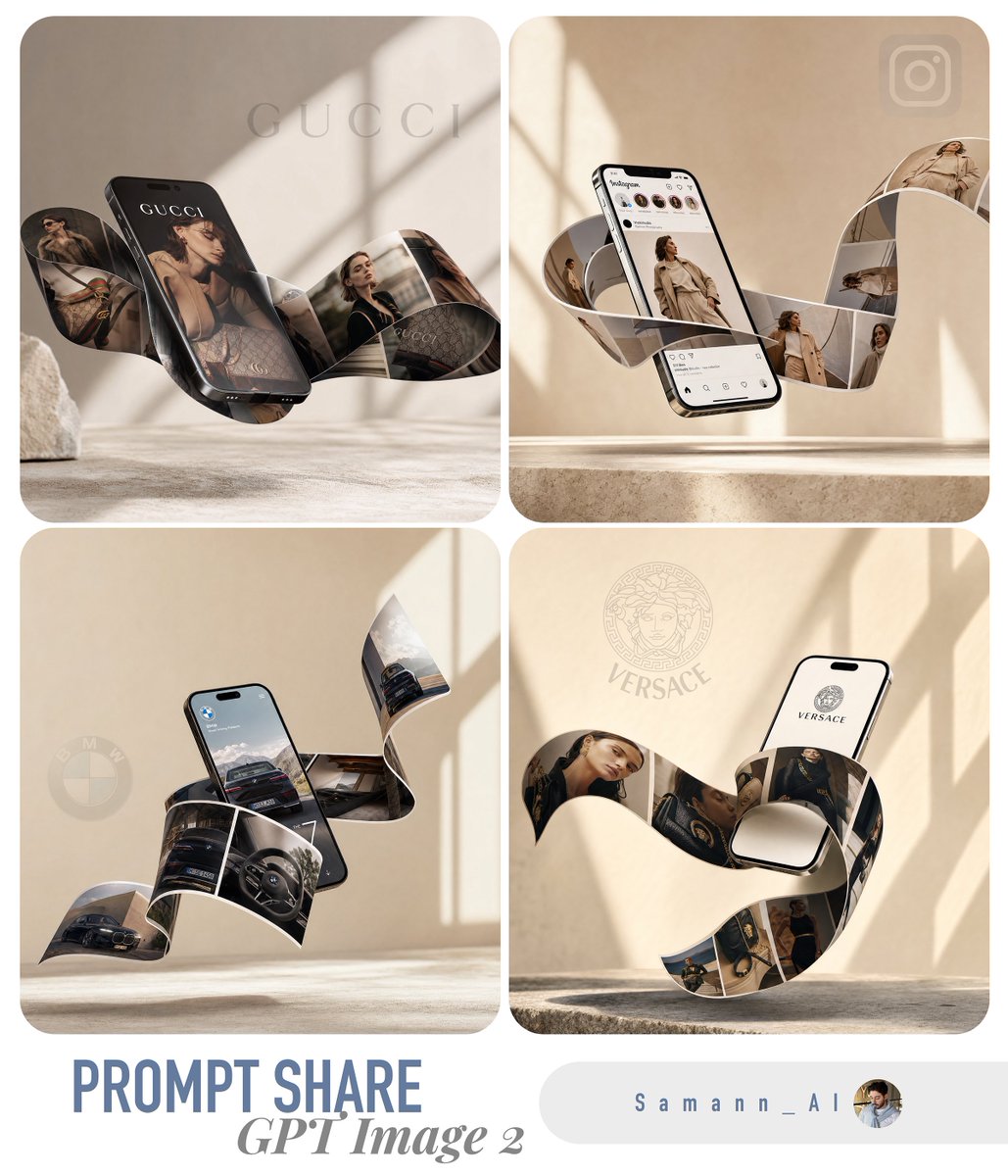
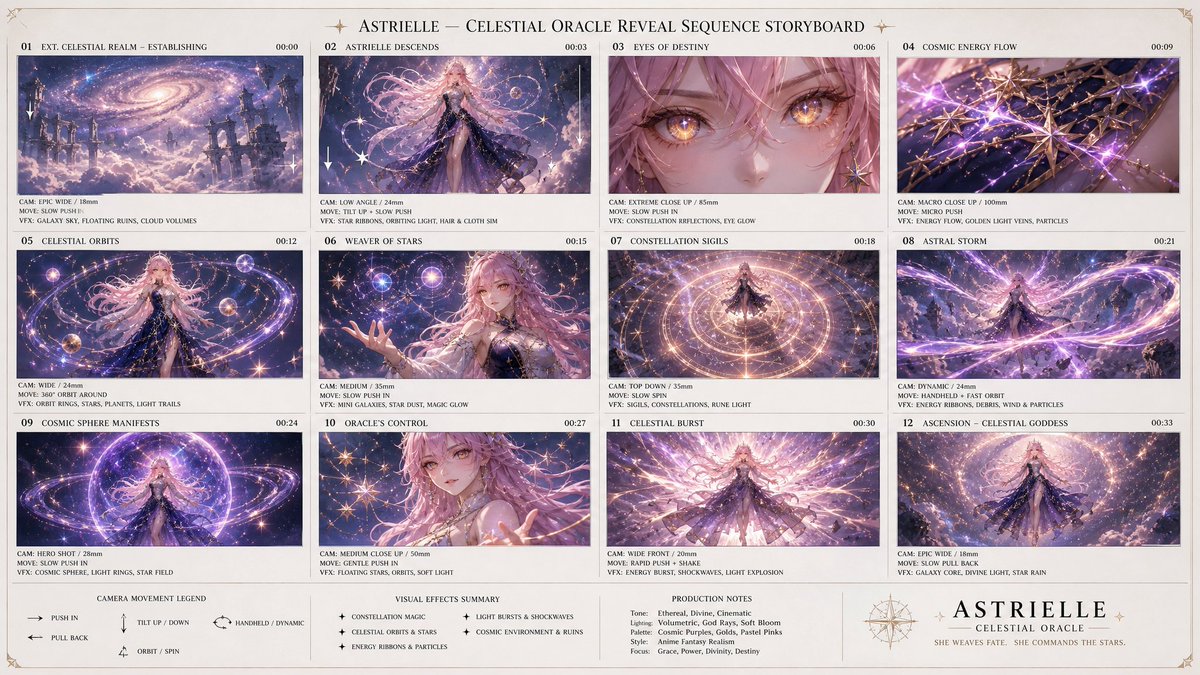
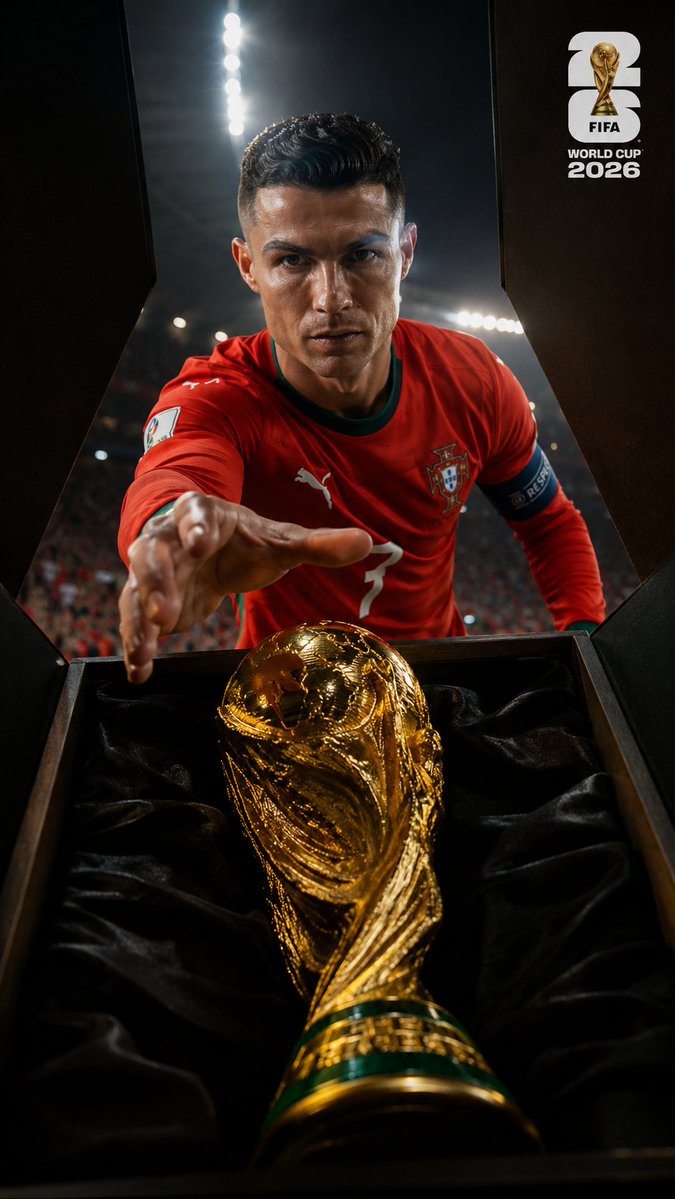
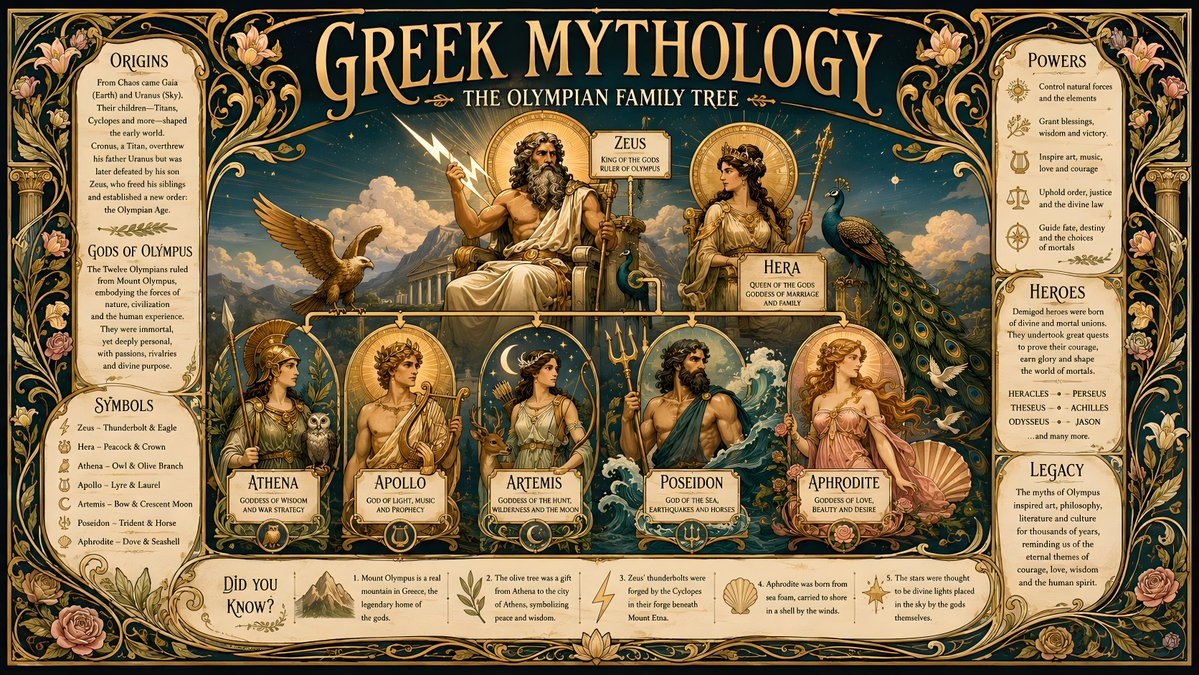
Try these techniques now
Open the free GPT Image 2 generator and put this into practice — 20 free credits, no credit card.